Control of the Tape Server
To
access the tape control system from the Main
Menu click-on the button Tape
Control. This will start the main Tape
Drive Control window or open it if it was already running somewhere.
Ensure
any drive you use has a tape inserted and is online (DLT – Tape In Use yellow
led on). [Solaris takes 30 seconds to respond if an attempt is made to access
a tape drive which has no online tape;
Linux is much quicker but you will still get unexpected errors if you try to
access tape drives which are not online]
These
instructions refer to the Version 2 GUI, which is now the default.
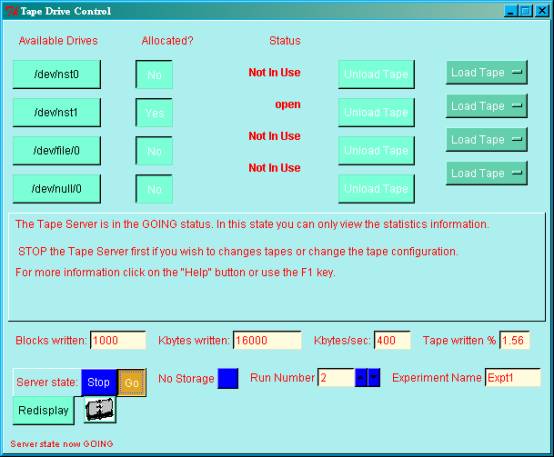
The Version 2 GUI has been
designed to give a much simpler interface to the Tape Server. However some of
the more advanced options supported by the Tape Server are not accessible.
Features
of the V2 GUI
- The Experiment Name is used as the volume name
for tapes. This can be changed as you wish when you are in the STOPped
state. Valid names are 1 => 6 alphanumeric characters starting with an
alphabetic character.
- A Run Number is maintained by the server and
is used to create a new file on your tapes whenever you GO. The
file names are of the form Rn where n is the current run number.
The Run Number can be changed as you wish within the range 1 to
99999 when you are in the STOPped state.
- Files are automatically closed when you STOP
and the Run Number is incremented.
- A copy of your data is written to all drives that are
Allocated and have a tape mounted.
- Options that are currently unavailable due to the
state of the drive or the server are disabled.
Help and instructions on what
you can or should do next are displayed in a panel in the centre of the window.
Drive Allocation
Click on the Allocated button next to each Available
Drive to toggle between Yes and No. All drives for which you
wish to receive a copy of your data should be allocated.
Note
that for tape drives a tape should be loaded and the drive should be in the
online and ready state.
Drive types are available
which are mapped to disc files.
Load Tape
You can choose between Initialise (when loaded a
new tape); Mount (when adding data to an existing tape) and Reinitialise
(when reusing an existing tape).
In
order to Reinitialise a tape which already contains data you must supply
the existing tape name as a security measure.
You will get the error message Invalid Tape Name if you attempt
to Initialise a tape which already contains data or attempt to Reinitialise
a tape but supply an incorrect existing name.
Unload Tape
Unloads
the selected tape.
Blocks written
Kbytes written
Kbytes/sec
Tape written
Useful statistics about your tapes. If you are writing
data to more than one drive (more than one drive is in the allocated and ready
state when you GO) then this information is taken from the first In
Use tape in the list.
Server
State
This
button permits the Tape Server state to be changed. The current state of the Tape Server is shown by the button that
is depressed or golden in colour.
No Storage
This button causes all data received by the Tape Server
to be discarded. It is essentially a
diagnostic tool.
Redisplay
Updates the displayed information from the Tape Server.
Click
on the drive name to obtain detailed information about the status of the drive.